Introduction
In the our previous post, we looked at four ways contractors can organize bid package exhibit templates. One of those methods was creating separate template versions for different common situations.
This is one of the simplest ways to manage exhibit variation. Instead of starting from one generic template every time, a contractor creates different versions of the same exhibit for different owners, regions, project types, or other repeat conditions.
For example, a contractor may have one safety exhibit template for LAUSD projects, another for PUSD projects, another for Meta data center projects in Texas, and another for private commercial projects in California. Each version includes the contractor’s standard boilerplate language plus the conditional reusable language that usually applies to that situation.
This method can work well when the number of versions is manageably small. The project team can select the closest version, make project-specific edits, and move forward.
The challenge is that the workflow depends on the team selecting the right version. When templates are managed in Microsoft Word, shared drives, and folders, the team has to know which versions exist, which one applies, which one is current, and which one should be copied into the project workspace.
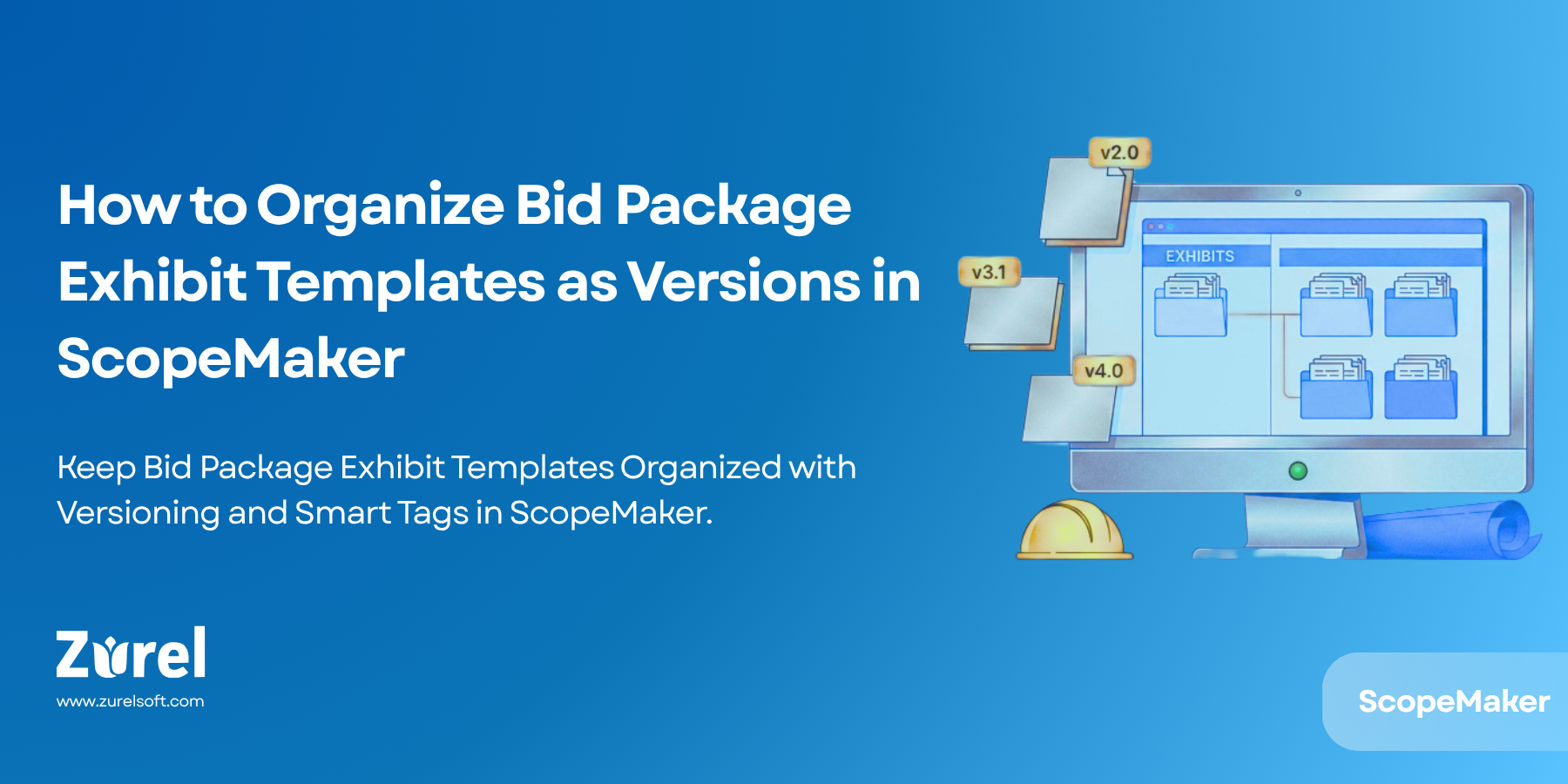
ScopeMaker helps make this method more practical by allowing teams to tag template versions, tag projects, search templates by tags, and find exhibit templates that match the conditions of the project.
How the Separate Template Version Method Works
The separate-version method is built around creating a different template version for each common situation the contractor wants to support.
A contractor may organize exhibit templates by owner, such as LAUSD, PUSD, Meta, or Kaiser; by region, such as California, NorCal, SoCal, Texas, or Arizona; by project type, such as school, healthcare, data center, multifamily, or commercial office; or by labor condition, delivery method, or market sector.
Each version is already shaped around a known condition. A Meta data center template for Texas may include the contractor’s standard language, owner-specific requirements, data center requirements, and Texas-related language. An LAUSD template may include school district requirements, public work language, and California-specific requirements.
The project team does not have to rebuild those sections every time. They can start from a version that already includes much of the language they are likely to need.
This is why the method can be attractive. It keeps the project team from having to assemble every exhibit from smaller pieces, while still giving them a starting point that is more specific than a broad master template.
The Limitation: The Team Has to Know Which Version to Use
The biggest limitation of this method is template selection.
A few versions may be easy to manage. But as the number of versions grows across exhibits, owners, regions, project types, and labor conditions, the project team has to know more before choosing the right starting point.
They may need to know whether the project should use the owner-specific version, the regional version, the project-type version, or a more specialized blended version. They may also need to know whether one version has replaced another.
This creates practical risk. A team member may use a general template when a more specific version exists. They may use a client-specific version that does not include the right jurisdictional language. They may use a regional version that does not include owner-specific requirements. Or they may copy an older version without realizing that a better version has already been created.
The version-based method is not the problem. The problem is that the method depends on the team being able to quickly and correctly identify which version applies to the project.
Why Microsoft Word and Folder-Based Workflows Make This Harder
Microsoft Word is a strong writing and editing tool, but it is not designed to manage template applicability.
Most contractors using Word rely on folder structures, file names, and team memory. A folder may include files such as Safety Exhibit Template – LAUSD, Safety Exhibit Template – California, Safety Exhibit Template – Meta Data Center Texas, Safety Exhibit Template – Updated, or Safety Exhibit Template – Use This One.
At first, this may seem workable. But file names and folders have to carry too much information. A template may apply to more than one condition, such as Meta, data center projects, and Texas. Another may apply to LAUSD, school projects, public work, and California. A folder structure usually forces a document into one place, even when the template belongs to multiple categories.
Now apply that same problem across all bid package exhibits, not just the safety exhibit. The team may have separate versions for safety, labor, insurance, logistics, subcontractor requirements, general conditions attachments, and other scope-related documents. Each exhibit type may have its own owner-specific, region-specific, project-type-specific, or blended versions.
What starts as a manageable list of templates can quickly become a larger template management problem across the full bid package. The workflow depends on people knowing where to look, what to search for, and which file is correct.
The result is a practical risk: the team may copy the wrong version before exhibit drafting even begins.
How ScopeMaker Makes Template Versions Easier to Use
ScopeMaker supports the separate-template-version method by making template versions easier to organize, understand, and find.
Instead of relying only on file names and folders, ScopeMaker allows template managers to tag exhibit templates with one or more tags. These tags describe when each template version applies.
Template managers can also add a short description to each tag. This helps the broader team understand what the tag means and when it should be used. For example, a tag such as “Meta” can clarify whether it applies to all Meta projects, only data center work, only a specific region, or only certain exhibit language.
This reduces the need for users to remember the meaning of every tag. It also makes the template system easier for new estimators, project managers, or preconstruction team members to use.
For example, a template version may be tagged with Meta, Data Center, and Texas. Another may be tagged with LAUSD, School Project, Public Work, and California. Another may be tagged with Healthcare, SoCal, and Prevailing Wage.
This gives the template library more flexibility. A template does not have to live in only one folder. It can be found through any of the conditions that apply to it.
Searching Templates by Tags and Matching Project Conditions
ScopeMaker can help users search for exhibit templates based on tags.
This matters because project conditions often overlap. A project may be a Meta project, a data center project, and a Texas project. Another may be an LAUSD project, a school project, a public project, and a California project.
With an OR search, the user can find templates that match any selected tag. For example, Meta OR Data Center OR Texas can show templates that match any of those conditions. This is useful when the user wants to explore potentially relevant templates.
With an AND search, the user can narrow the results to templates that match all selected tags. For example, Meta AND Data Center AND Texas can show only templates tagged with all three conditions. This is useful when the user wants the most specific version for a project.
ScopeMaker can also allow users to tag projects. Once a project is tagged, the team can search for templates whose tags match the project’s conditions. Instead of asking the team to remember which version to use, ScopeMaker helps surface the templates that are most relevant to the project.
The team still makes the final decision, but ScopeMaker gives them a better starting point and reduces the chance that the wrong template version will be selected simply because it was easier to find.
Practical Example: Meta Data Center Project in Texas
Consider a contractor that performs repeat work for Meta and has completed several data center projects in Texas.
The contractor maintains several safety exhibit template versions: a standard safety exhibit template tagged Standard, a Texas version tagged Texas, a data center version tagged Data Center, a Meta version tagged Meta, and a more specific Meta Data Center Texas version tagged Meta, Data Center, and Texas.
When a new Meta data center project in Texas starts, the project team tags the project Meta, Data Center, and Texas.
When the estimator or preconstruction manager is ready to copy exhibit templates into the project workspace, they can search for templates that match the project tags. A broad search can show all templates related to Meta, data centers, or Texas. A narrower search can show the version that matches all three conditions.
The team can quickly identify that the Meta Data Center Texas safety exhibit is the most relevant starting point. This reduces the need to browse folders, compare file names, or ask another team member which version to use.
Why This Improves Bid Package Exhibit Workflows
The separate-template-version method can be effective, but only when users can find the right version.
ScopeMaker improves this workflow by making template selection more structured. Teams can create different versions of exhibit templates for common conditions, tag each version based on applicability, add descriptions to tags, tag projects based on project conditions, search templates using AND or OR logic, and copy relevant exhibit templates into project workspaces.
This helps contractors keep the advantages of separate template versions while reducing one of the biggest risks: selecting the wrong version.
The benefit is not only faster searching. The larger benefit is better scope clarity and bid package consistency. When the right template version is easier to find, the team is more likely to start from the right scope language. That can reduce rework, avoid missed owner-specific or region-specific requirements, and create clearer expectations for subcontractors.
Conclusion
Creating separate versions of bid package exhibit templates can be a practical way to manage recurring project conditions.
It works especially well for contractors that have repeat owners, repeat project types, regional requirements, or a manageable number of common variations. The team can start from a template that is already close to what the project needs instead of rebuilding conditional language every time.
But this method has a clear limitation. The team has to know which version to use. With Microsoft Word and folder-based workflows, that knowledge often lives in file names, folder structures, and individual memory. As the number of versions grows, the risk of selecting the wrong template grows with it.
ScopeMaker makes the version-based method easier to manage by using tags. Teams can tag template versions, add tag descriptions, tag projects, search with AND or OR logic, and find templates that match the project’s conditions.
That helps preconstruction teams move faster, reduce confusion, and create more consistent bid package exhibits before the bidding process begins.
About Author